Access to Nova's Vimeo account
We are using Nova's shared Vimeo account.
- Go to https://vimeo.com/ and login using the marketing credentials (marketing@epinova.se) found in 1Password.
- Go to 'Team library' and select 'Epinova AB'
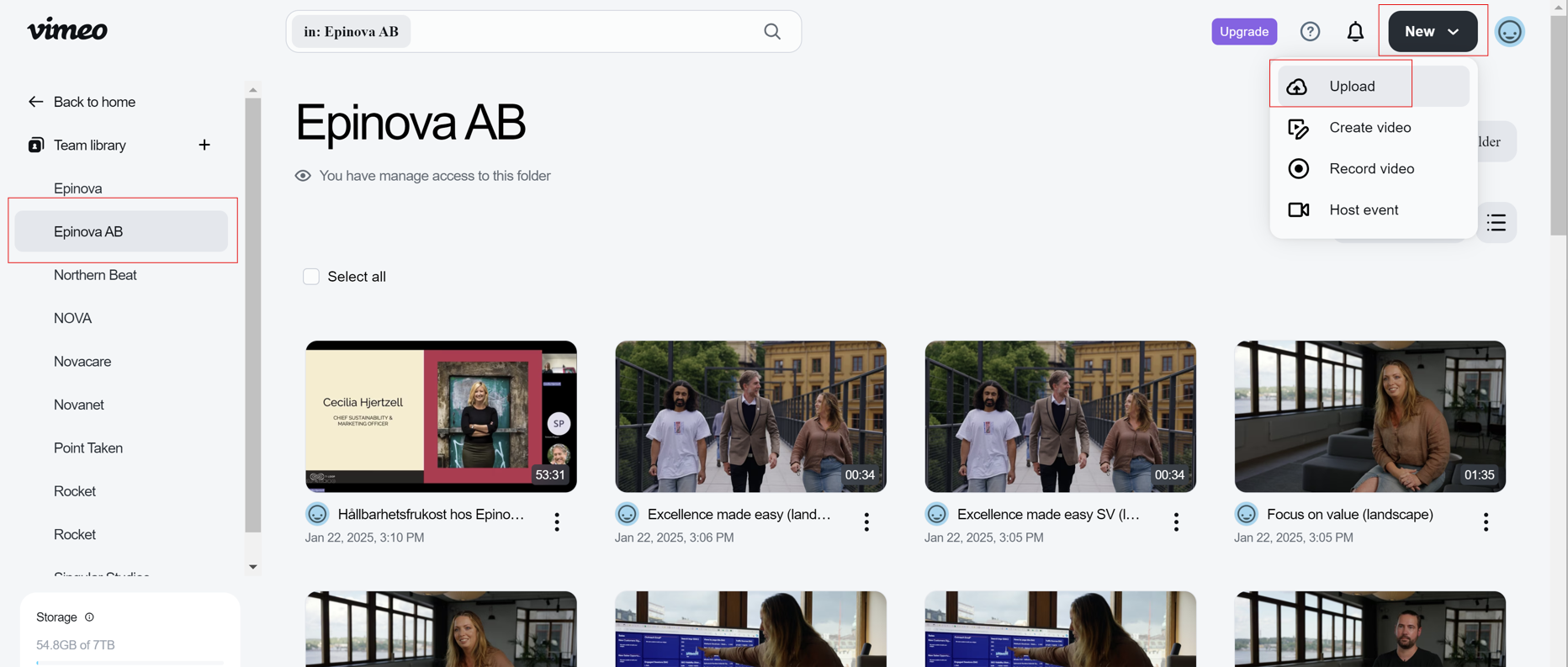
Upload video
- Click on 'New button' (right corner) and 'Upload'.
- Drag and drop your media file.
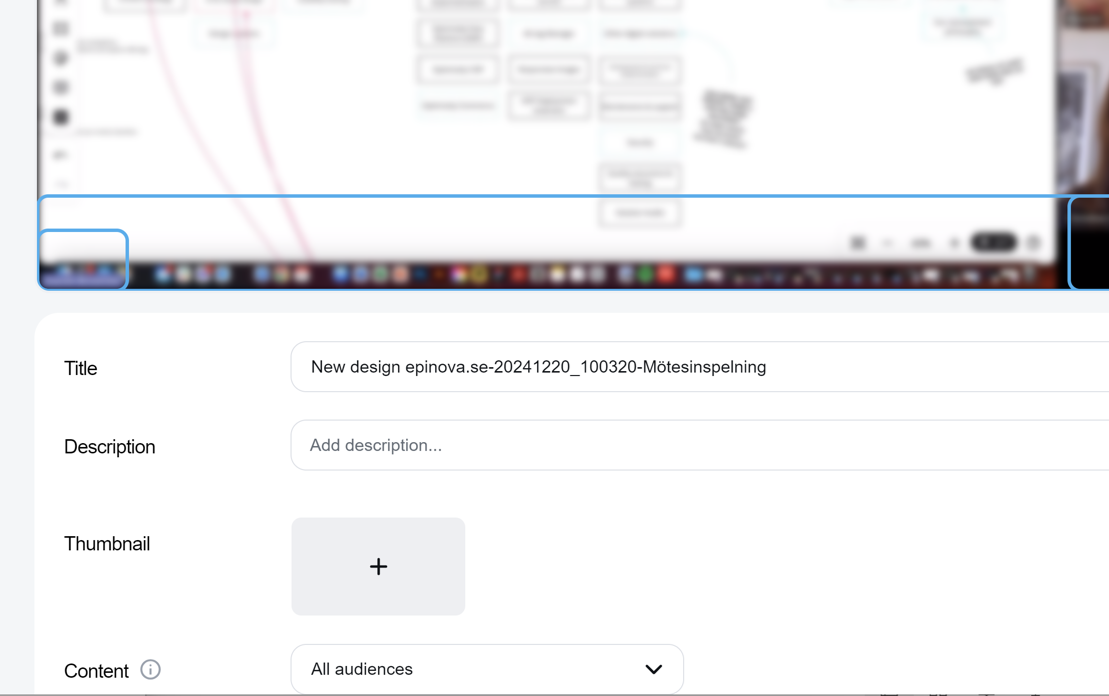
- Fill in a descriptive title and description while the video is uploading.
Vimeo will suggest a thumbnail image. You can also add one by clicking on the plus (+) sign.
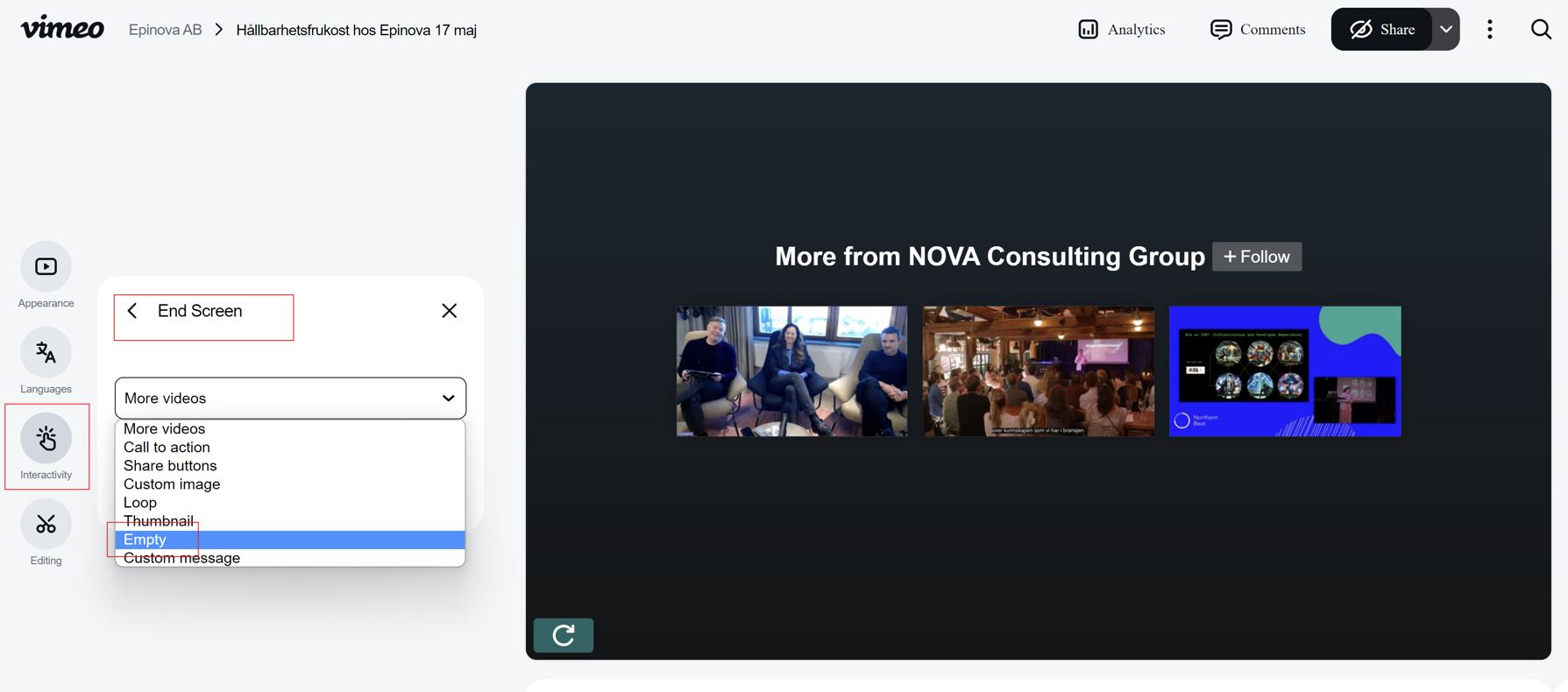
Empty end screen and add chapters
- Remove suggested video by clicking on 'Interactivity' and 'End screen'.
It is best to do first because it will remove other appearance settings.
If the video is long consider adding chapters which is also found under 'Interactivity'.
Brand your video appearance
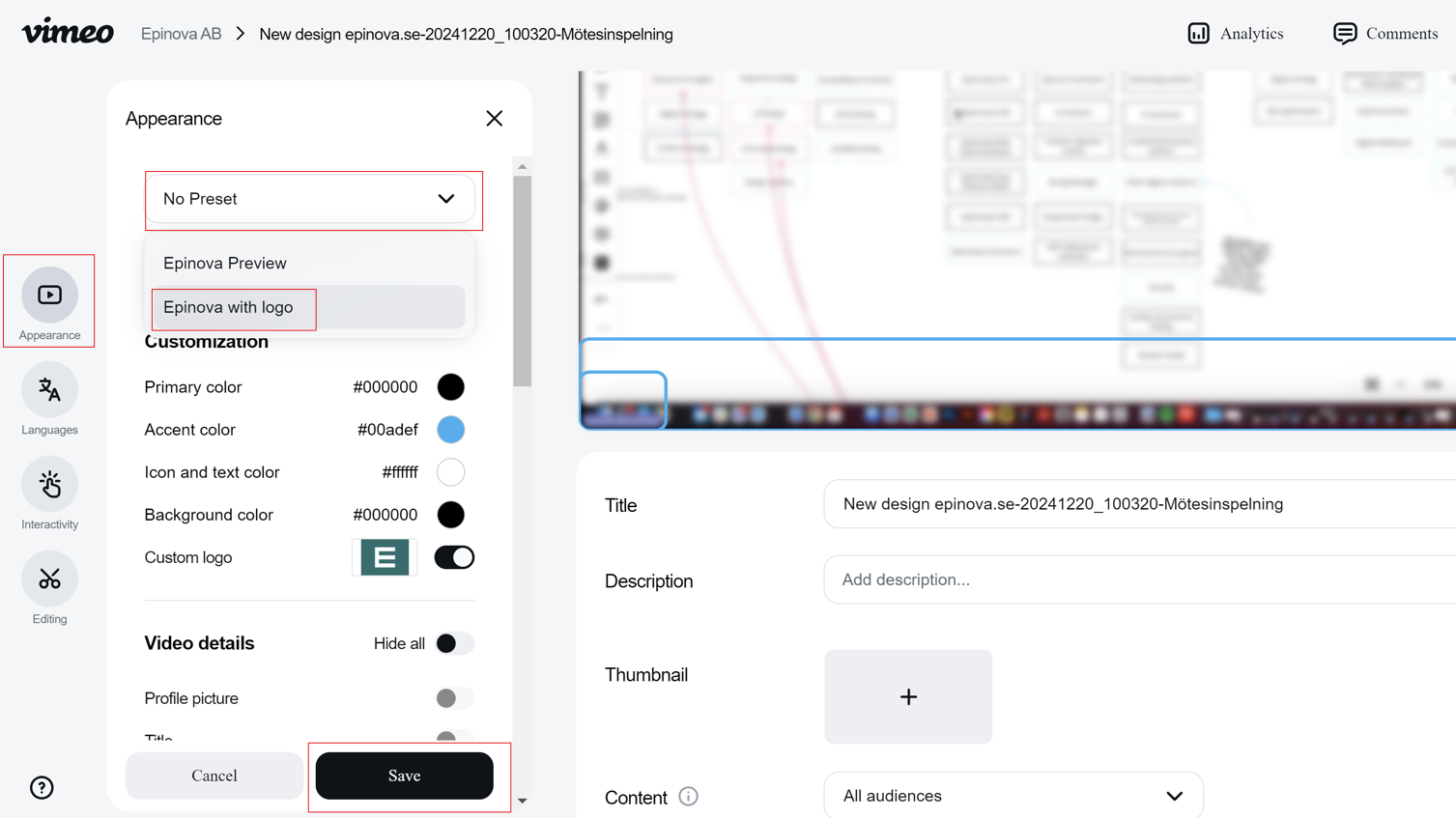
We want the video look like Epinova is the sender not Vimeo and this is easily done by using a custom template.
- Click on 'Appearances' to remove video details and Epinovify the video.
- Select 'Custom logo'.
- Use preset 'Epinova with logo' template.
- Click save
Make video private and share on Epinova's website
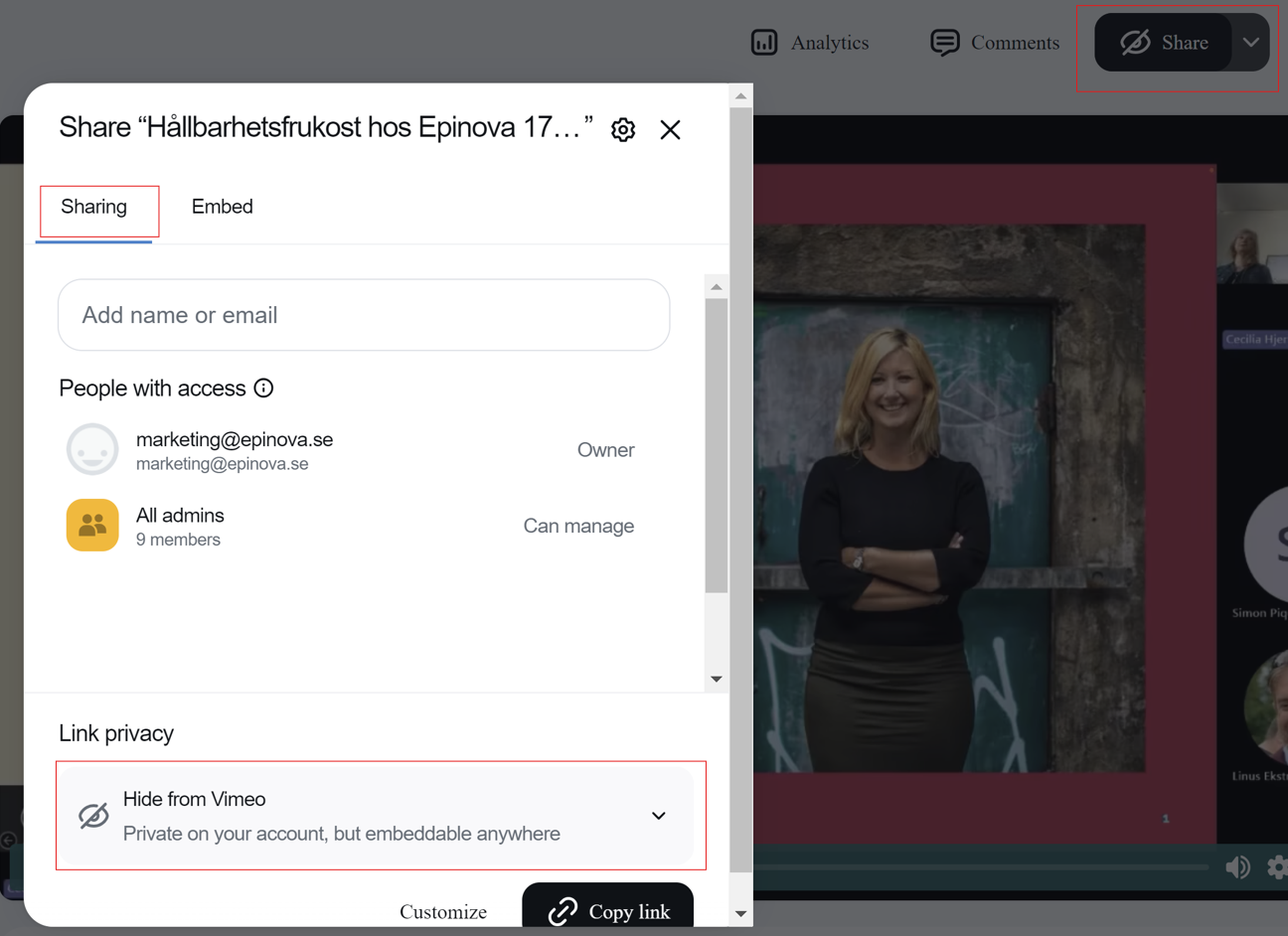
Our videos on Vimeo are used for sharing elsewhere and should not show up in Vimeo or be shared by users. Hiding the video from Vimeo and removing the share option (see Brand your video) will make you video available only on your chosen place for example Epinova's website.
- Click on the 'Share' button and update the 'Link privacy setting' to 'Hide from Vimeo'.
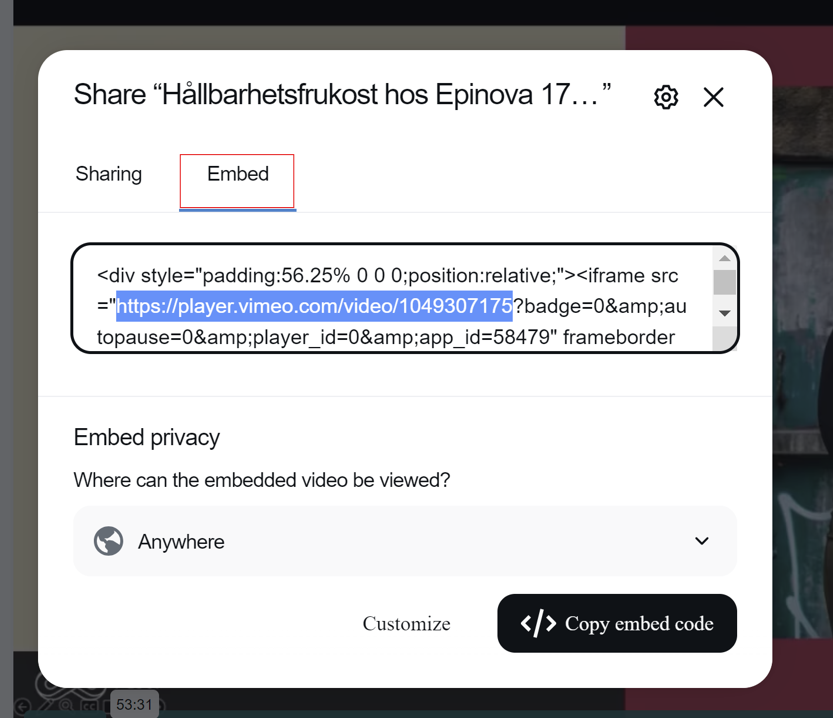
- Click on the 'Embed tab' and copy the URL to your video.
- Add video URL eg https://player.vimeo.com/video/1039661071 to the video block on Epinova's website.
Voila! Your video is ready.